How to Create Your Own Music Using the Suno App
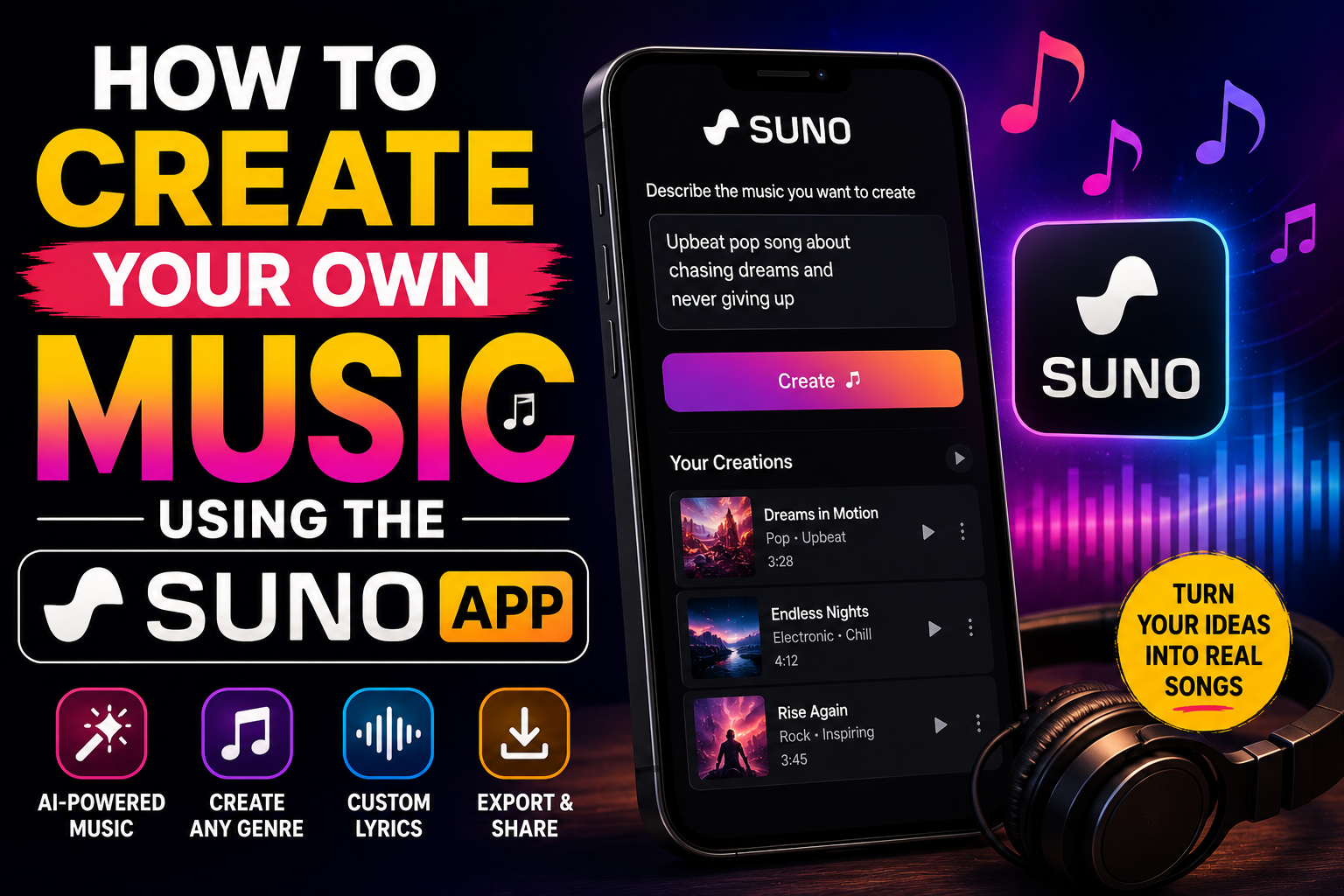
What if you could create a full song — complete with vocals, instruments, and a professional sound — without knowing how to play a single instrument or read a note of music? That’s exactly what Suno makes possible. In just a few clicks, this AI music generation app turns a simple text prompt into a fully produced track that sounds like it came out of a real recording studio. Whether you want to make a catchy pop song, a moody lo-fi beat, a country ballad, or a thundering metal track, Suno can do it — and the free tier gives you plenty of room to experiment.
In this guide, we walk you through everything you need to know to start creating your own music with Suno — from signing up and writing your first prompt to using advanced features that give you more creative control over the final result.
What Is Suno?
Suno is an AI-powered music creation platform founded in 2023 that allows anyone — regardless of musical background — to generate original songs from text descriptions. You describe what you want (“an upbeat 80s synthpop song about driving at night with a female vocalist”) and Suno’s AI composes, arranges, and produces a complete track in under a minute. It generates both the instrumental and the vocals, including lyrics it writes on its own or that you supply yourself.
By 2026, Suno has become one of the most widely used AI creative tools on the internet, with millions of songs generated every day. It’s available as a web app and has integrations with platforms like Microsoft Copilot. The free plan gives you 50 credits per day — enough to generate around 10 songs — making it genuinely accessible without spending anything.
Step 1: Sign Up and Get Started
Getting started with Suno takes less than two minutes. Head to suno.com and click “Sign Up.” You can create an account using your Google, Microsoft, Apple, or Discord credentials — no separate username or password needed. Once logged in, you’ll land on the main creation dashboard where all the magic happens.
On the free plan, you receive 50 credits per day, which refresh automatically every 24 hours. Each song generation costs 5 credits and produces two variations of your track simultaneously, giving you two different interpretations to choose from. That means you get roughly 10 song pairs per day on the free tier — more than enough to experiment freely.
Step 2: Write Your First Prompt (Song Description)
The most important skill in Suno is writing a good prompt. This is where you tell the AI what kind of song you want. Click the “Create” button on the left sidebar to open the creation panel, then type your description into the “Song Description” box.
A good Suno prompt typically includes:
- Genre or style: Pop, hip-hop, jazz, classical, metal, bossa nova, EDM, country, R&B, etc.
- Mood or emotion: Uplifting, melancholic, aggressive, dreamy, romantic, energetic, nostalgic
- Instrumentation: Acoustic guitar, piano, synths, drums, strings, bass, brass
- Vocal style: Male/female, raspy, smooth, falsetto, no vocals (instrumental), choir
- Topic or theme: What the song is about — a road trip, a breakup, a summer night, perseverance
- Era or influence: “80s vibes,” “90s hip-hop,” “Beatles-inspired,” “modern trap”
Example prompt: “A melancholic indie folk song about leaving your hometown, fingerpicked acoustic guitar, soft male vocals, slow tempo, cinematic and emotional”
The more specific your prompt, the closer the result will be to your vision. Vague prompts like “a good song” will still produce something listenable, but detailed prompts consistently yield better, more tailored results.
Step 3: Choose Between Simple and Custom Mode
Suno offers two creation modes, and knowing which to use makes a big difference in your results.
Simple Mode (Default)
In Simple Mode, you type your description and Suno handles everything else — it writes the lyrics, chooses the structure, and produces the full track. This is the fastest way to get a complete song and is ideal for beginners or anyone who just wants to explore what Suno can create. The AI’s lyric writing is surprisingly competent, often producing verse-chorus structures with coherent, fitting words on the first try.
Custom Mode
Custom Mode is where Suno’s creative power really unlocks. Toggle the “Custom” switch at the top of the creation panel and you’ll see two new fields: Lyrics and Style of Music. In the Lyrics field, you can paste your own song lyrics — verses, chorus, bridge, and all. In the Style field, you describe the musical style separately from the content. You can also set a song title.
This mode is invaluable if you want to write your own words, adapt existing poetry into a song, or tell a very specific story. Suno will set your exact lyrics to music while still generating the full instrumentation and vocal performance. Many users find Custom Mode produces significantly more personal and emotionally resonant results than Simple Mode.
Step 4: Generate, Listen, and Pick Your Favorite
Once you click Create, Suno takes between 30 and 90 seconds to generate your two song variations. While it processes, you’ll see a loading animation — then two playable tracks appear in your feed. Click play on each and listen. They’ll often be surprisingly different from each other despite sharing the same prompt, which is actually a feature: you get two creative interpretations to choose from every time.
If you love one but want a slightly different variation, click the “…” menu on any track and select “Create Variation” — this generates new versions using the same song as a seed, keeping the core style while introducing fresh elements. It’s a powerful way to iterate toward exactly the sound you want without starting from scratch.
Step 5: Extend Your Song
By default, Suno generates songs that are roughly 1 minute 20 seconds to 2 minutes long. If you want a longer track — a full 3–4 minute song — you can use the Extend feature. Click the “…” menu on a generated track and select “Extend.” Suno will continue the song from where it left off, generating additional sections that flow naturally from the original. You can extend a track multiple times to build out a complete song with an intro, multiple verses, a bridge, and a proper outro.
Pro tip: when extending, you can add new lyrics or style instructions for the next section — for example, specifying “instrumental bridge, build toward final chorus” to guide the AI’s continuation. This gives you a surprising level of compositional control for a tool that requires no music theory knowledge.
Step 6: Download and Share Your Music
Once you’re happy with a track, downloading it is simple. Click the “…” menu on the song and select “Download.” Suno lets you download both the full audio track (as an MP3) and, on paid plans, the separate audio and video file. Free plan users can download MP3s of all their generated songs — there’s no paywall on exports, which is genuinely generous compared to many AI creative tools.
You can also share directly from Suno — every song gets a public URL that you can post to social media, send to friends, or embed. Songs generated on the free plan are public by default and visible on your Suno profile page. If you want private songs that only you can access, you’ll need a paid subscription.
Suno Pricing: Free vs. Paid Plans
| Plan | Daily Credits | Songs per Day | Commercial Use? | Private Songs? | Price |
|---|---|---|---|---|---|
| Free | 50 | ~10 | No (personal only) | No | $0 |
| Pro | 2,500/month | ~500/month | Yes | Yes | ~$8/month |
| Premier | 10,000/month | ~2,000/month | Yes | Yes | ~$24/month |
For most casual users and hobbyists, the free plan is more than sufficient. If you want to use your Suno-generated music in YouTube videos, podcasts, social media content, or commercial projects, a paid plan is necessary to obtain the commercial license. The Pro plan at around $8/month is excellent value for content creators who need a steady supply of original, royalty-free music.
Tips for Getting the Best Results from Suno
- Be specific with genre tags. Instead of “rock,” try “90s grunge rock, distorted guitars, raw vocals, Seattle sound.” The more precise your style descriptor, the more accurate the result.
- Use metatags in Custom Mode lyrics. Suno recognizes structure tags like [Verse], [Chorus], [Bridge], [Outro], and [Instrumental Break] inside your lyrics to tell it how to arrange the song. Using these consistently improves structure dramatically.
- Generate in batches and pick the best. Since each generation gives you two variations, generate the same prompt 2–3 times (using 15–30 credits) to get 4–6 versions, then choose your favorite. The quality variance between generations can be significant.
- Iterate with variations rather than starting over. If a track is 80% of what you want but the vocals are slightly off, use “Create Variation” rather than writing a new prompt from scratch. Variations preserve what’s working while introducing new elements.
- Explore the community feed for inspiration. Suno’s public feed is full of songs from other users. When you find a style you love, look at the prompt that generated it — this is one of the best ways to learn what kinds of descriptions produce great results.
Final Thoughts
Suno has genuinely democratized music creation. For the first time in history, the ability to produce a complete, professional-sounding song is available to absolutely anyone with an internet connection and an idea. Whether you want to make a personalized birthday song, produce background music for your YouTube channel, experiment with songwriting for the first time, or just have fun exploring genres you’ve always loved, Suno delivers with remarkable ease and quality.
The learning curve is minimal, the free tier is generous, and the creative ceiling is surprisingly high once you master Custom Mode and the extend feature. Give it a try — your first song is literally two minutes away.
Have you tried Suno yet? Share your experience or post a link to your favorite generated track in the comments!